
When your business runs on meetings, keeping track of clients and customers can get messy fast. You need to remember who booked with you, what you talked about last time, and when to follow up. That often means piecing things together from calendar invites, notes, email threads, and spreadsheets.
And that’s on top of all the other parts of running your business.
Calendly Contacts gives you a simpler way to keep track of client and customer relationships.
Whenever someone new books a meeting with you, Calendly creates a contact profile for them. Every time you interact with that person, Calendly updates their contact profile. You can keep track of:
- Contact details
- Meeting history
- Booking form responses
- Notes
- Next steps
… all in one place. No more relying on scattered notes, manually updating spreadsheets, or switching between tools.
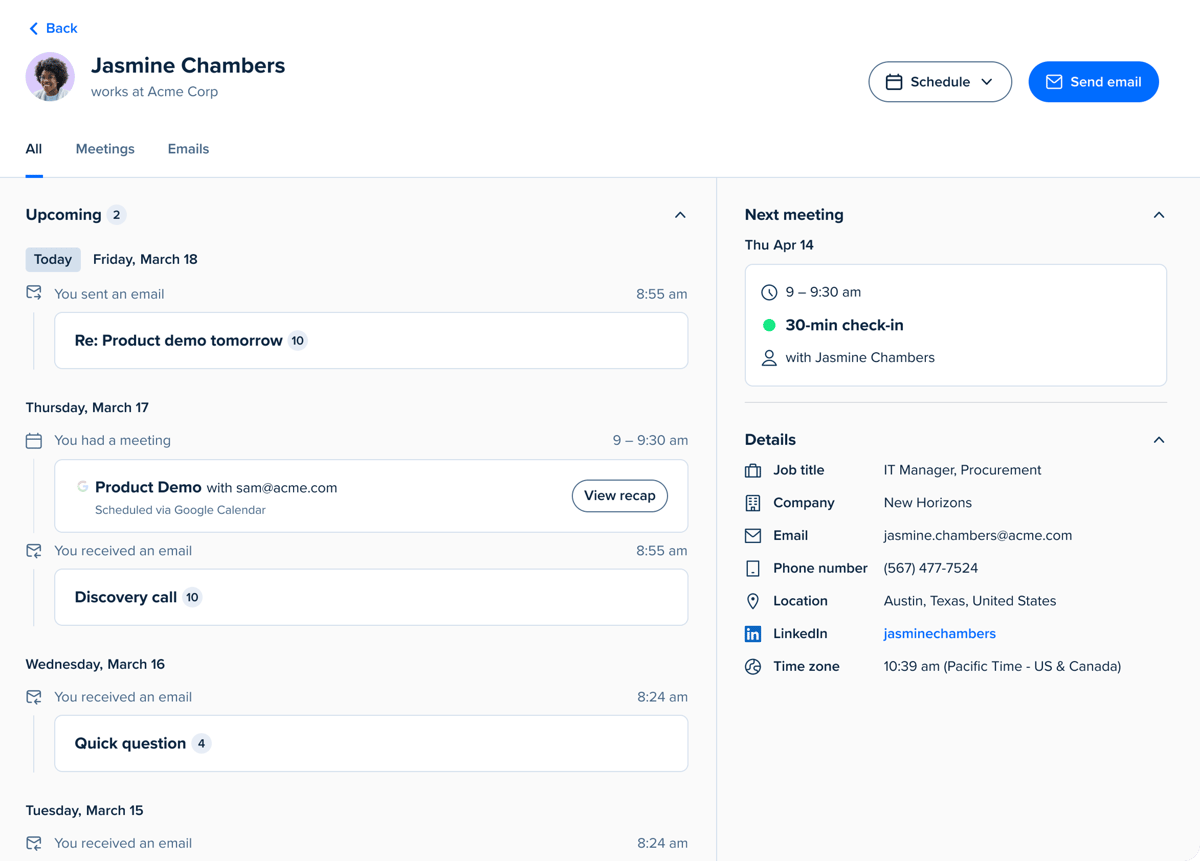
Plus, it’s already built into your Calendly account, so you can start using it ASAP without setting up a separate system or maintaining a traditional CRM.
Here are six ways to use Calendly Contacts to save time, manage relationships, and make your day-to-day work easier.
Want to follow along? You can find the Contacts tab in the left nav of your Calendly account.
I appreciate how Calendly automatically builds a detailed contact record for every person who books a call. This completely eliminates manual data entry and duplication, making it a massive time saver.


1. Import contacts from a CSV
If you already use a spreadsheet or other tool to track client information, you don’t have to start from scratch.
You can import contacts into Calendly with a CSV file, so you can bring your existing client, lead, and customer information into Contacts. If someone in your CSV is already in your Calendly Contacts list, you can merge duplicates.
Importing contacts can also help if your client information is spread across different places today. Instead of checking a spreadsheet for names and notes and Calendly for meeting history, you can bring that information together in one place.
2. Track what matters with custom fields and lists
Different businesses need to keep track of different details.
A coach may want to track renewal timing. A freelancer may want to note the project status or client budget. A consultant may want to flag VIP customers or keep an eye on who needs a follow-up.
With custom fields, you can track the details that matter most to your business, like:
- Renewal date
- Project status
- Birthday
- Service type
- Budget
… or anything else you want to keep handy. Create a custom field by choosing the field type and adding a label, or pull in invitee responses to your booking form questions on any Event Type.
Lists help you group contacts, so you know who to follow up with. Use built-in lists or create your own (like “VIP customers”) based on form fields, time since your last interaction, next meeting date, and more. For example, if you meet with clients on a monthly basis, you could set up a list called “Needs follow-up” that automatically pulls in anyone whose last meeting was more than 30 days ago.
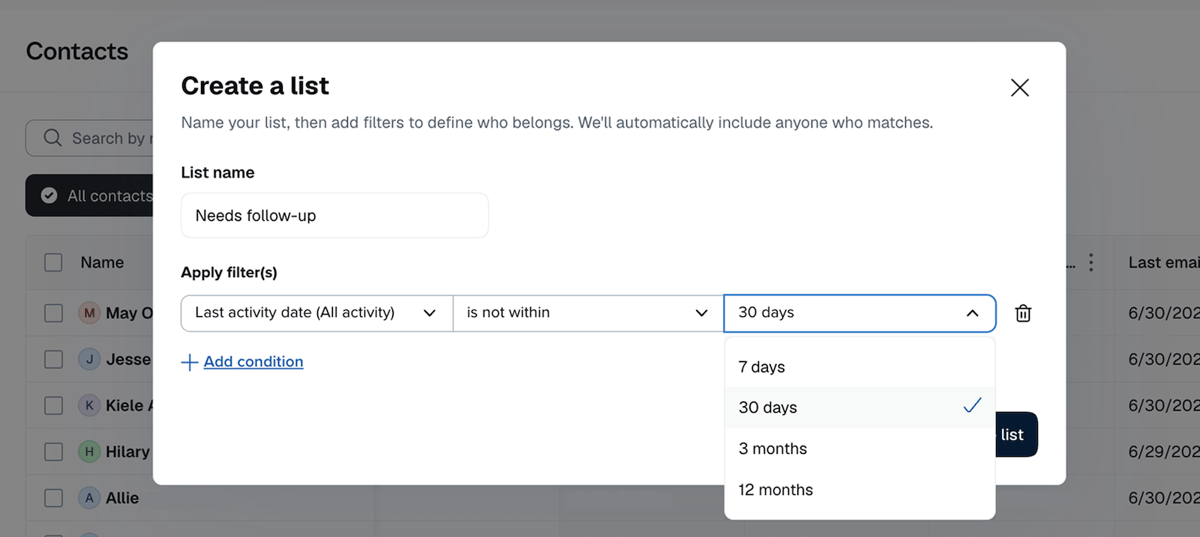
Custom fields and lists can help you keep the right people and details top of mind, even when business gets busy.
3. Use Notetaker recaps to pick up where you left off
If you use Calendly Notetaker, you can review meeting recaps right from the contact profile.
Instead of digging through notes or switching between tools to prep for your next meeting, see what was discussed and what decisions were made on your last call.
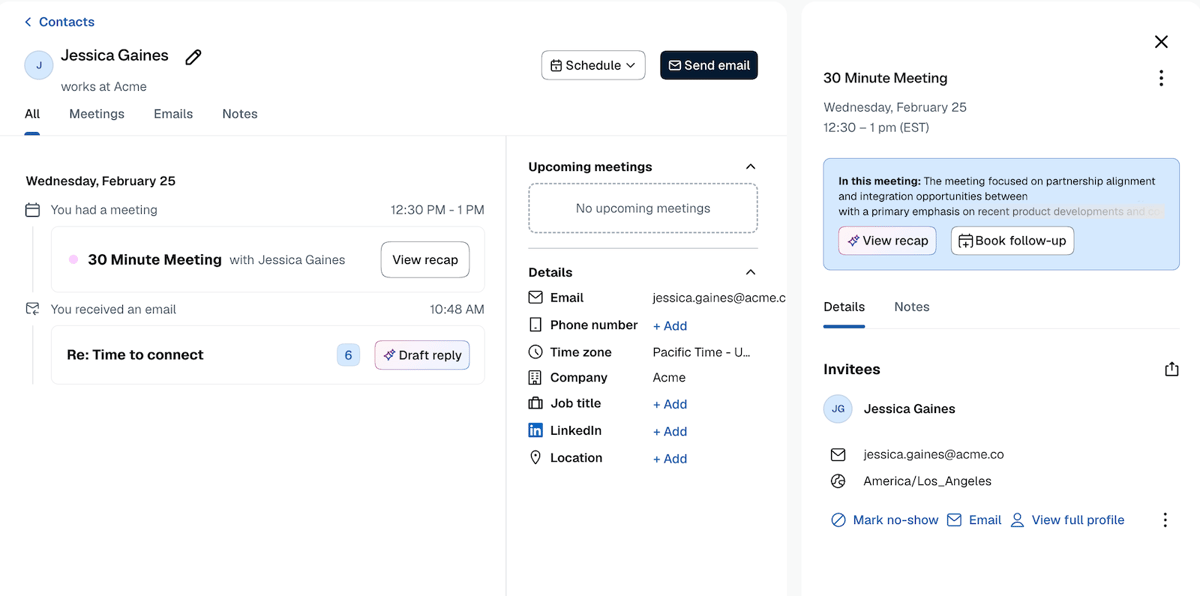
Say you’re a consultant with several client calls in one afternoon. Before each one, you can scan the last recap and get the context you need without digging through notes or jumping between tools. If you’re picking back up with a client after several weeks, you can review the last meeting before the call and walk in ready to continue the conversation.
With meeting history, notes, and recaps in one place, you never have to go into a meeting cold.
4. Manage your contacts wherever you work
When you’re juggling a ton of tasks or working on the go, jumping between apps can break your flow. Calendly Contacts is available in the Calendly web app, the mobile app for iOS and Android, and the browser extension, which means you can get the context you need without switching tabs or interrupting your focus.
Create a new contact, view existing contacts and your meeting history, edit contact details, book a meeting in real time, or share your availability — wherever you're working.
5. Sync with Gmail to bring in email history
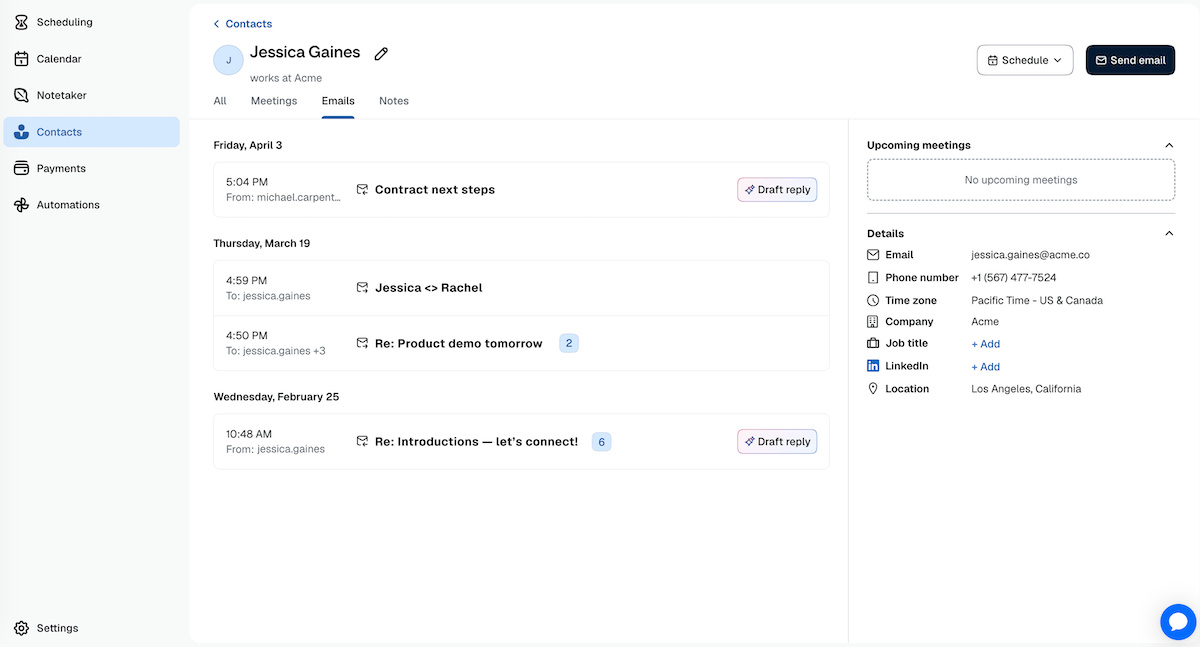
A lot of the back-and-forth with clients and customers happens over email, not just in meetings. When you connect Gmail to Contacts, you can automatically add that email history to contact profiles. (Available on paid plans.)
That gives you a more complete view of the relationship when you open someone’s profile. You can see meeting history alongside the emails that happened between meetings, whether that’s a question that came in afterward, a reply to a proposal, or a note you sent before the next call.
It’s a practical way to keep the context together, so you can quickly remind yourself where things stand before you reach out.
6. Email contacts right from Calendly
When all of a contact’s details are in one place, you can quickly see who needs a follow-up and reach out without switching tools. In the contact profile, just click Send email, draft your message, and click Send. (Available on paid plans.)
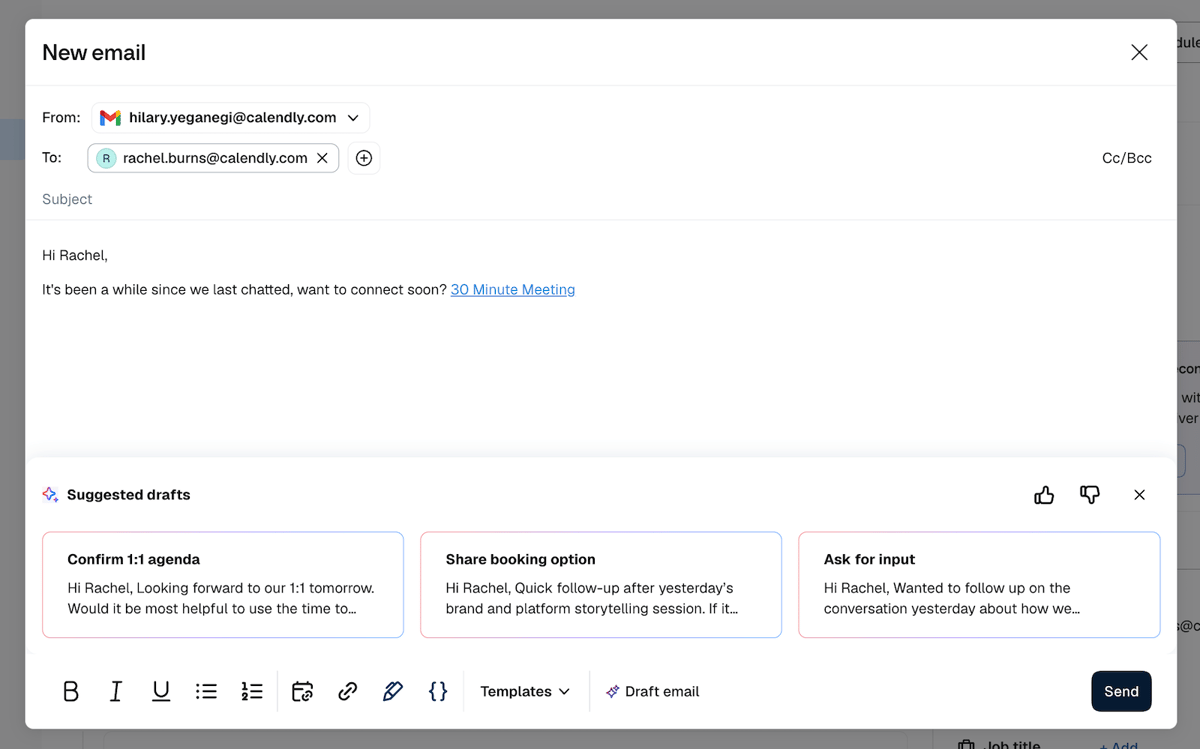
You might notice a lead hasn’t booked again, see that it’s been a while since your last meeting with a client, or review someone’s notes and realize it’s time to reach out. Whatever the case, you can handle the follow-up then and there, so it doesn’t become another to-do list item or slip through the cracks.
Manage relationships without the busywork
The work of keeping up with clients and customers doesn’t start and end with meetings. There’s the prep before, the follow-up after, and all the small details that help you stay organized and build relationships.
That’s where Calendly Contacts can help. Instead of keeping those details spread across notes, email threads, and spreadsheets, you can bring them all into one place.
If you’re already using Calendly to schedule meetings, Contacts is an easy way to take admin work off your plate, so you have more time to focus on connecting with clients and growing your business.
Get started with Calendly
Ready to make meetings easier than ever?